
Knowledge
A step-by-step guide to using an online lucky wheel
Tickmi's lucky wheel tool works right in your browser, with no sign-up. This article walks through each real button and option on screen, in the order you will use them: from pasting your list to downloading the results.
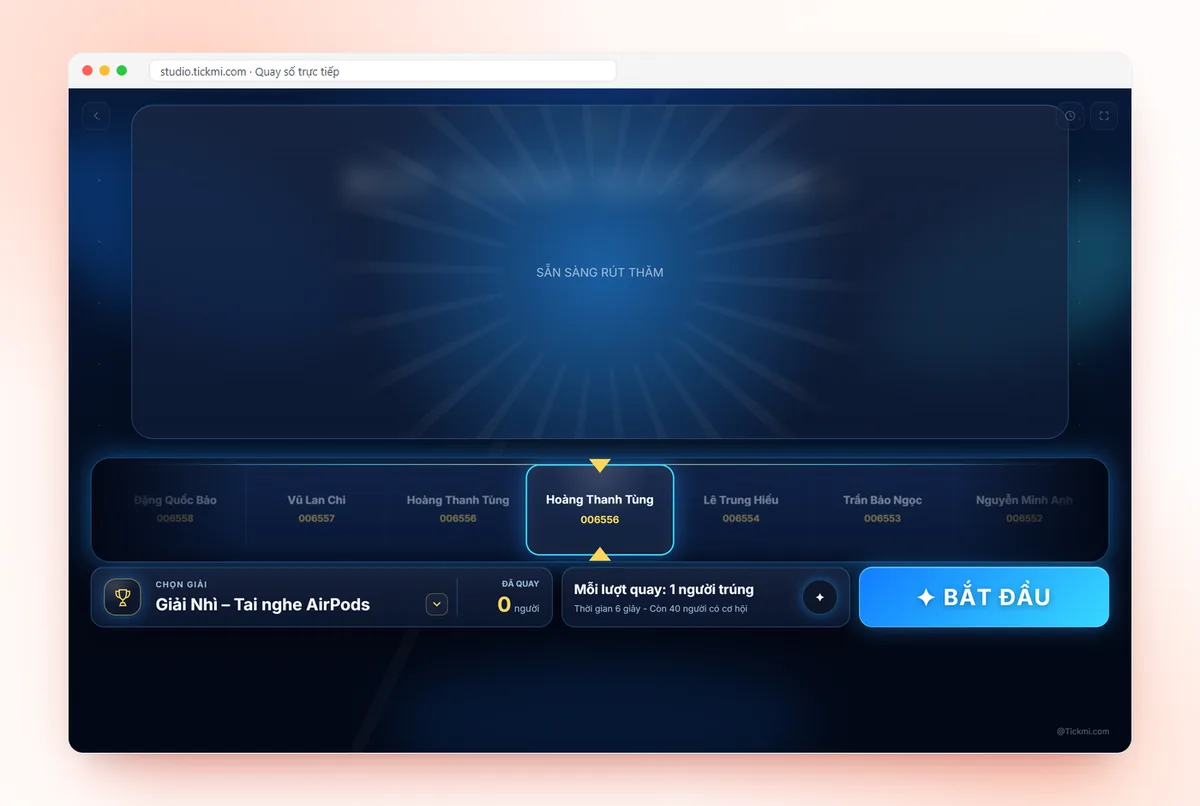
Before you start: what you need to prepare
You only need three things: a list of names, a browser, and (if you are drawing in front of an audience) a large screen or projector. The tool is at Tickmi's free online lucky wheel, ready to use with no sign-up.
The list, settings and results are saved in the browser on your computer. In practice: reopen the same browser and your data is still there; switch computers or use incognito mode and you have to enter it again. So always keep an original copy of the list in Excel.
Step 1: Paste the participant list
Click the Settings button on the stage, and in 1. Participant list, paste names into the input box. There are three ways to enter them:
| Input method | Result on screen |
|---|---|
| One name per line | Each line is one person |
| Copy two columns from Excel and paste | Column 1 shows large (full name), column 2 shows small underneath (department, ticket number...) |
| A single line with names separated by commas | The tool splits them into individual people automatically |
A few points that are often missed. Two people with the same name still count as two people, so no one loses their chance because of a duplicate name. The free version accepts up to 100 people; line 101 onward is ignored and the tool tells you how many lines were skipped. The number of people appears right below the input box, so check it against your original list. To try it quickly, click Use sample list; to start over, click Clear list (it asks for confirmation).
Step 2: Choose how to draw
Section 2. How to draw has four options:
- Current prize name: shown on screen and recorded in the results, for example "Second Prize". Change the name before each prize so the history doesn't get mixed up.
- Winners per draw: from 1 to 100, adjusted with the minus and plus buttons or by typing a number. Set above 1 and the results appear as a grid, revealing one person at a time.
- Spin duration: drag the slider from 3 to 30 seconds, default 8 seconds. In front of a crowd, 8 to 15 seconds is suspenseful enough; longer tends to bore the audience.
- Exclude past winners from later draws: on by default, so no one wins twice. The line "x/y people still eligible" tells you how many are still in the running.
Step 3: Adjust the stage appearance
Section 3. Appearance only affects the look:
- Title on screen: the default is "LUCKY WHEEL"; change it to your event name, up to 60 characters.
- Stage color: four colors to choose from by clicking a color swatch. Pick one that suits your event's backdrop.
- Spin music: six tracks, including Northern Lottery, Magic Hat (Chiec Non Ky Dieu), Lucky Wheel, Dramatic, Fun, Upbeat, plus a No sound option. In a hall where the MC talks continuously, turn the music off or choose a softer track.
Every change in Settings shows immediately on the stage behind it, so you can preview before clicking Done.
Step 4: Show full screen and press START
Connect the computer to a projector or LED screen and click the Full screen icon in the corner of the stage. In full screen, the controls hide automatically after a few seconds of inactivity so the audience only sees the draw. Click START to spin, or press Space (or Enter) when the cursor is not in an input box.
After the spin, the winner's name appears with the line "Congratulations to the lucky winner" (or "Congratulations to the lucky winners" when drawing several people). The "Won" counter goes up. The Esc key closes any open panels.
Step 5: View history and download results to Excel
Click the history icon to open the Drawn results panel: each draw shows the prize name, the number of winners and the list of winners. Click Download winners list (CSV) to get a file that opens in Excel with columns for draw, prize, winner, info and time. Download it right after drawing, because the history lives in the browser.
Two buttons that are easy to confuse:
| Button | Effect |
|---|---|
| Clear history (in the results panel) | Deletes all drawn results; past winners become eligible again |
| Reset draws (in Settings) | Deletes results and lets everyone be drawn from scratch, the list is kept |
Both ask for confirmation, but download the CSV before clicking.
Common problems when using an online lucky wheel
| Situation | How to fix it |
|---|---|
| Clicking spin opens the input box instead of spinning | The list is empty. Paste names, then click Done |
| A message says the whole list has been drawn | Everyone has already won. Add people to the list or click Reset draws |
| The Space key doesn't start a spin | The cursor is in the input box or the Settings panel is open. Click Done and press it again |
| The list is gone when you reopen it | You are using a different browser, incognito mode, or cleared browser data |
| You want to draw the next prize but the previous winners are still in the list | Keep the option to auto-exclude past winners on. Only turn it off if you deliberately allow multiple wins |
When to move to drawing in Tickmi Studio
The free wheel suits you when you already have a list and need a quick draw. If your event has QR tickets and check-in, use Tickmi's lucky draw software to draw directly from people who are present, with multiple prizes set up in advance. The setup steps are in the live lucky draw guide. If you need to prepare the rules and split the prizes, also read how to structure lucky draw prizes.
Quick checklist before the draw: list pasted and headcount correct; prize name correct; winners per draw correct; one trial draw done, then Reset draws; projector audio checked; original list file ready.
Want to try it right now with your own list: online lucky draw in the browser, paste your list, click spin, nothing to install.
Need a wheel just to call names, split groups or pick presenters in a classroom or meeting room? The random name wheel opens in wheel style, paste your list and spin.
About Tickmi
Tickmi is a ticketing and attendee experience platform (Ticketing & Participant Experience Platform). On a single, unified set of attendee data, Tickmi connects the whole journey: issuing invitation, registration and paid tickets, sending branded QR tickets, checking in with the app, kiosk or scanner (even when the network is down), and then welcome screens, lucky draws, voting, quizzes and surveys. Tickmi is trusted by organizations such as Viettel, VNPT, MobiFone, FPT and CMC. Learn about Tickmi or try it free.
Frequently asked questions
Is Tickmi's online lucky wheel free, and does it need sign-up?
You can use it right away in the browser, with no account sign-up. The list, settings and results are saved in the browser on your computer.
What is the maximum number of people in one draw?
You set the winners per draw from 1 to 100. The participant list in the free version is capped at 100 people. The Wheel style draws 1 person per spin; to draw several people at once, choose the Tile style.
How do I make sure no one wins twice?
Keep the "Exclude past winners from later draws" option on in Settings (it is on by default). To start over from scratch, click "Reset draws".
How do I save the results to check after the event?
Open the "Drawn results" panel and click "Download winners list (CSV)". The file opens in Excel and includes draw, prize, winner, info and time.
Can I show it on a projector or LED screen?
Yes. Click the Full screen icon, then click START or press the Space key. Remember to check the projector audio if you turn on music during the draw.
Issue QR tickets, send emails, check in and engage attendees on one platform.