
Knowledge
How to create bulk QR codes from an Excel file
You have a list of a few hundred people in Excel and need one QR code for each, to print on tickets or badges or send by email. There are three ways, and they differ in whether the QR code is just an image or a scannable ticket that prevents reuse.
First: what is your QR code for?
This question decides which approach to choose. A QR code is just an image encoding a string of characters. That string can be a link, a phone number, an employee ID or a ticket code. There are two very different needs:
- "Information" QR: scanning gives a link or a piece of text, with no need to know who scanned it or how many times. For example: a QR leading to a document, a QR on a product label, an employee ID QR printed on a badge.
- "Ticket" QR: one code per person, and when scanned you must know who it is, whether it is still valid and whether they have already entered. For example: a conference invitation ticket, a seminar registration ticket, a year-end party ticket, training session attendance.
For information QR, approaches 1 and 2 below are enough. For ticket QR, a QR image alone is not enough: you need a system that validates on scan, otherwise a screenshot can be used many times. See also how to prevent fake and reused tickets. If you only need a few information codes, creating QR codes online one at a time is the fastest way.
Approach 1: Use the IMAGE formula in Excel 365 or Google Sheets
Excel has no built-in QR function, but Excel 365 and Google Sheets have the IMAGE function, which displays an image from a link. Combine it with a QR-generating service via URL and you immediately get a column of QR codes.
Steps
- Prepare the column of data to encode, for example column A holding attendee codes (NV001, NV002...). Each row must be a unique value.
- In cell B2, enter the formula (works in both Google Sheets and Excel 365):
=IMAGE("https://quickchart.io/qr?size=300&text="&ENCODEURL(A2))
TheENCODEURLfunction keeps special characters and accented characters in the cell from breaking the link. - Drag the formula down the whole list and increase the row height so the QR images are large enough.
- Test-scan a few rows with a phone camera before using them.
Important notes
- Data passes through an external service. Each cell sends the content to be encoded to the QR-generating server. Do not encode attendees' phone numbers, emails or ID numbers this way; use only codes that carry no personal information.
- Images sit inside cells and are hard to export separately. To get individual PNG files to send to a printer, you have to screenshot or use another tool.
- The IMAGE function is only in recent Excel 365 versions. Excel 2016/2019 does not have it.
Approach 2: Use a bulk QR tool that works from a file
Many online tools let you upload a CSV/Excel file and return a zip containing each QR image, named after a column in the file. This suits you when you need separate images for bulk printing.
- Save the list as CSV with one column for the QR content and one column for the file name.
- Upload to the tool and choose the size, colors and format (PNG for digital print, SVG for large-format print).
- Download the zip and open a few images at random to test-scan.
The limitations are the same as approach 1: you have a folder of images, but no way to know who scanned, no protection against a code being used twice, and placing the QR images into tickets and sending them to each person is still manual work. Re-read what a QR code ticket is to see the difference between a "QR image" and a "QR ticket".
Approach 3: Import Excel into a ticketing platform: one scannable QR ticket per person
When the QR code is used for entry or attendance, the fastest and safest way is to let the ticketing system generate the codes. In Tickmi Studio, the process is as follows:
- Create a ticket product and ticket types (for example VIP, Guest, Press).
- Go to Attendees & tickets → Attendees, click Import attendees, then Download template. The template already has the right columns for the ticket product's fields.
- Paste your list into the template and upload it. If some rows have errors (missing email, wrong format), click Download error file, fix just those rows and import again. You can also import directly from Google Sheets.
- The system automatically creates a personal QR code for each person, with an 8-character ticket code for check-in when scanning fails, and issues the ticket file in the template you choose.
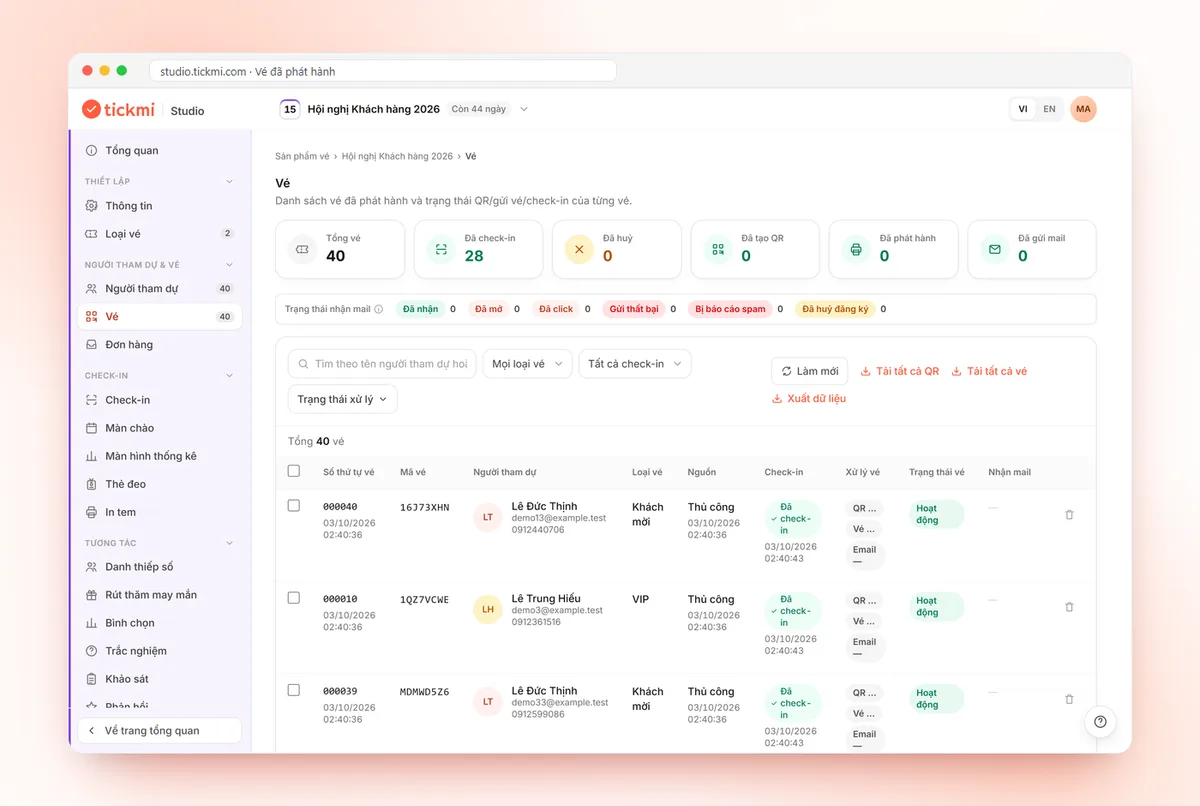
- In the Tickets tab, click Download all QR or Download all tickets to get a zip file, where you can choose how each file is named, convenient for sending to a printer. Or send tickets by bulk email right within the system.
On the event day, staff scan tickets with the phone app: the system shows the right name and ticket type and blocks tickets that are already checked in or cancelled. For the complete solution see create QR invitation tickets and send bulk email and QR code check-in software. For step-by-step details see attendee management, generating QR, downloading and printing tickets in bulk and sending bulk QR tickets by email.
Quick comparison of the three approaches
| Criterion | IMAGE formula | Bulk QR tool | Ticketing platform |
|---|---|---|---|
| Time for 500 rows | A few minutes | A few minutes | A few minutes |
| Produces separate image files (zip) | No | Yes | Yes, named as you wish |
| Placed into a designed ticket | By hand | By hand | Automatic from the ticket template |
| Emailing each person | By hand | By hand | Bulk sending, with send status tracking |
| Knowing who scanned, preventing reuse | No | No | Yes, in real time |
| Suited to | Information QR, small quantities | QR printed on labels, fixed badges | Invitation tickets, registration tickets, attendance |
Prepare the Excel file correctly from the start
Whichever approach you choose, a clean source file saves you from redoing work:
- One person per row, no merged cells, no blank rows in the middle of the list.
- One unique identifier column (email or employee ID). Remove duplicates before creating codes; two duplicate rows become two codes for the same person.
- Split full name, organization and title into separate columns so printing on tickets or badges looks good later.
- Standardize emails: remove extra spaces, use lowercase. Wrong emails are the most common reason tickets never reach recipients.
- Add a grouping column (VIP, partner, staff) if you need different ticket colors or access rights.
QR code size and print quality
- A QR code printed on a ticket should be at least about 2.5 cm wide; on a badge scanned from a distance it should be larger.
- Keep a white border around the code (the quiet zone); placing the QR at the edge or on a patterned background is a common reason scanners cannot read it.
- Print a test page and scan it with the very device you will use at the gate, under real lighting conditions.
- The longer the string, the denser and harder to scan the code: a short ticket code is better than stuffing the full name and email into the QR.
About Tickmi
Tickmi is a ticketing and attendee experience platform (Ticketing & Participant Experience Platform). On a single, unified set of attendee data, Tickmi connects the whole journey: issuing invitation, registration and paid tickets, sending branded QR tickets, checking in with the app, kiosk or scanner, even when the network is down, then the welcome screen, lucky draw, voting, quizzes and surveys. Tickmi is trusted by organizations such as Viettel, VNPT, MobiFone, FPT and CMC. Learn about Tickmi or try it free.
Frequently asked questions
Does Excel have a built-in function to create QR codes?
No. Excel 365 and Google Sheets have the IMAGE function to display a QR image from a QR-generating service via a link; Excel 2016/2019 does not have this function.
Is creating QR codes with a formula safe for personal data?
Each cell's content is sent to an external QR-generating service, so encode only identifier codes that carry no personal information, and do not encode phone numbers or emails.
How can each QR code be scanned for entry only once?
A self-generated QR image cannot do this. You need a ticketing system that validates on scan: Tickmi marks a ticket as checked in and warns when a ticket is scanned again.
Does importing Excel into Tickmi require the exact column format?
Yes. Click Download template in the Import attendees dialog to get the right columns for the ticket product; error rows are returned in the error file to fix and import again.
Issue QR tickets, send emails, check in and engage attendees on one platform.