
Knowledge
Bulk email from an Excel list: mail merge or a ticketing system?
To send bulk email from an Excel list you have three options: Word and Outlook Mail Merge, Gmail combined with Google Sheets through an add-on, or a ticketing system like Tickmi. The first two are enough for notification emails personalized with a name. When each attendee needs a unique QR code, you need to know who received the email, and you need to resend quickly, a ticketing system is the better fit.
What is bulk email from an Excel list?
Bulk email from a list (mail merge) means writing one email template with blanks, then letting software fill in the data from each Excel row and send a separate email to each person. Recipients see an email addressed to them alone, and do not see anyone else's address.
Every mail merge method needs three things: a list file with an Email column, an email template with merge fields such as {Full name}, and an email account to send from. The difference is whether each person's data is complicated, and whether you can track the sending results.
3 ways to send bulk email: Word/Outlook, Gmail + Sheets, a ticketing system
All three can send personalized emails; the biggest differences are unique QR codes and send status tracking. The table below compares them on the criteria event organizers usually need.
| Criterion | Word + Outlook Mail Merge | Gmail + Google Sheets (add-on) | Ticketing system (Tickmi) |
|---|---|---|---|
| Setup | Needs Word and Outlook on a computer | Install an add-on in Google Sheets | Use in a browser |
| Personalization | Insert fields from Excel columns | Insert fields from Sheets columns | Insert fields from attendee information, including custom fields |
| Unique QR code per person | You must create QR images and merge them in yourself | You must create them yourself, depending on the add-on | Created automatically when the ticket is issued, with a ticket code |
| Sending limits | Per your mailbox quota | A Google account has a daily limit on emails | Sent through the system, or through the organization's SMTP |
| Send status tracking | Check the Sent folder manually | Depends on the add-on | Status for each ticket, with a Send failed alert |
| Resending to one person | Filter the row and run it again | Filter the row and run it again | Resend email button |
| Check-in at the gate | None | None | Scan the QR in the same system |
If you are weighing Gmail against a dedicated tool specifically, the article sending tickets with Gmail or a ticketing system looks closely at Gmail's quota.
When is Word/Outlook Mail Merge or Gmail enough?
Mail merge with office tools is enough when the email only carries general information and the list is small. Typical cases:
- Internal meeting invitations, schedule announcements, post-event thank-you emails.
- You do not need to control who enters the door and do not need a unique code for each person.
- The list is moderate and within the sending limit of the email account you use.
- You accept checking the Sent folder and bounce emails yourself to know who did not receive it.
A hypothetical example: an HR department sends a training schedule to a few dozen employees. Word + Outlook does this neatly in a few minutes, with no extra tools.
When does bulk email call for a ticketing system?
You need a ticketing system when the email is not only an invitation but also the entry ticket. Then each email must contain a unique QR code, and you must know for sure whether each person has received their ticket.
With Tickmi, the process is as follows:
- Go to the Attendees tab, choose Import attendees and upload the Excel file. Before uploading, filter out rows with a missing email or a badly formatted email yourself. Note: Excel import only adds new people and does not update people already on the list.
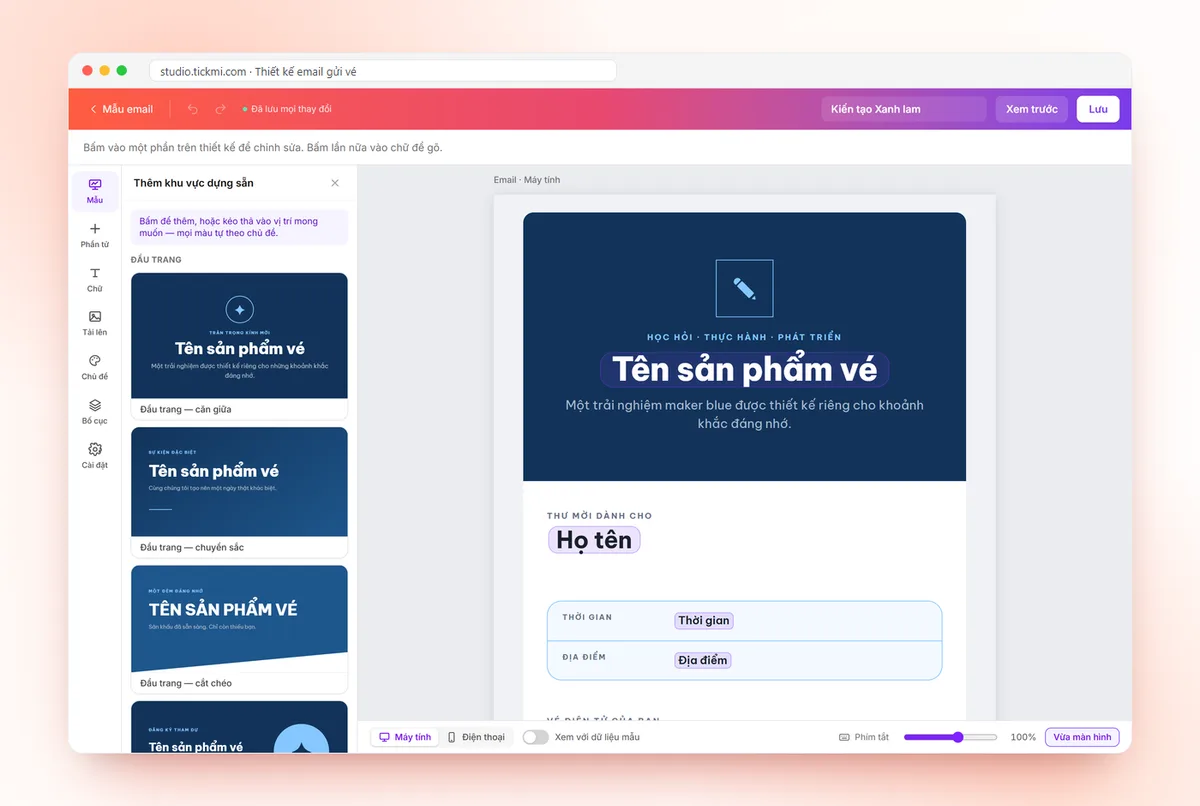
- Design the email template with the drag-and-drop builder, insert personalization fields, turn on Attach the ticket file to the email if you want, then check it with Email preview.
- Issue tickets: each person receives a unique QR code and ticket code, and the email is sent.
- Track the send status in the Tickets tab. For any ticket showing Send failed, fix the email and click Resend email.
If you want emails to go out from the organization's own address, configure SMTP in the Ticket email menu and use Send test before activating. The detailed steps are in the guide to sending QR tickets in bulk by email and the guide to designing emails and using an email on your own domain.
Two things Tickmi does not do, so you can plan correctly: Tickmi does not schedule emails (emails go out when you issue or click send), and it does not measure email open rates. If you need to send in a specific time window, issue the tickets at exactly that time; suggested send timings are in the article email schedule before the event.
Checklist before sending bulk email
- The Excel file has Full name and Email columns, one person per row, with duplicate emails filtered out.
- Emails have been checked for format, with no stray spaces or trailing commas.
- The email has a clear subject line, the sender name is the organization's name, and it is not written in all capitals.
- You have sent a test to yourself and checked it on both a computer and a phone.
- The sending address is the organization's email, with domain authentication configured following your email provider's instructions.
- Someone is assigned to watch the failed-send list on the sending day.
- If the email is an entry ticket: the check-in method and the support channel for people who lost the email have been agreed.
Common mistakes when sending bulk email from a list
| Mistake | Consequence | How to avoid it |
|---|---|---|
| Putting all addresses in the To or CC field | Every attendee's email is exposed | Use mail merge or a system that sends each email separately |
| A merge field with the wrong column name | The email shows "{Full name}" instead of the real name | Preview with sample data before sending |
| Exceeding the account's sending limit | Sending stops midway and it is unclear who received it | Send in batches, or use a system with per-person send status |
| Matching a QR code to the wrong person | The attendee cannot get through the door | Let the system generate codes tied to each person |
| Re-importing the whole Excel file to fix information | With Tickmi, a re-import only adds new people and does not fix existing ones | Edit directly on each attendee |
When you need to turn the whole list into QR codes, see also the article generating QR codes in bulk from Excel. An overview of the solution for issuing and sending tickets is on the QR invitation tickets page; you can start with 100 free ticket issuance quota, with details on the pricing page.
About Tickmi
Tickmi is a ticketing and participant experience platform. On a single, unified set of attendee data, Tickmi connects the whole journey: issuing invitation, registration and paid tickets, sending branded QR tickets, checking in with an app, kiosk or scanner (even offline), and then moving on to the welcome screen, lucky draw, polls, quizzes and surveys. Tickmi is trusted by organizations such as Viettel, VNPT, MobiFone, FPT and CMC. Learn about Tickmi or try it free.
Frequently asked questions
How can I send bulk email from an Excel list for free?
You can use Word Mail Merge with Outlook, or Gmail with a mail merge add-on in Google Sheets. If each person needs their own QR ticket, Tickmi offers 100 free ticket issuance quota.
Is there a limit when sending bulk email with Gmail?
Yes. Each Google account has a limit on how many emails it can send per day, and once you exceed it the account temporarily cannot send. Check Google's official help page for the type of account you use.
How can I tell which attendees did not receive the email?
With Word or Gmail, you have to check bounce emails in your mailbox yourself. In Tickmi, the Tickets tab shows the send status of each ticket; a ticket showing Send failed can have its email fixed and then be resent with Resend email.
Does Tickmi schedule emails or measure open rates?
No. Tickmi sends email when you issue the ticket or click send, and does not measure open rates. Tickmi focuses on making sure each person receives their own QR ticket and that you know which emails failed.
Can I send bulk email from my organization's email address?
Yes. In Tickmi Studio, configure the organization's SMTP in the Ticket email menu, click Send test, then activate it. If it is not configured, Tickmi sends from the system's default address.
Issue QR tickets, send emails, check in and engage attendees on one platform.