
Knowledge
Wedding invitation with a QR code: from sending the invitation to welcoming guests
A wedding invitation with a QR code is an online wedding invitation sent individually to each guest, where guests tap to confirm whether they are coming, and on the wedding day each guest has a QR code to scan at the door. On Tickmi, you make the invitation for free on the online invitation page, turn on attendance confirmation, then follow the number of groom-side and bride-side guests on one screen.
What is a wedding invitation with a QR code?
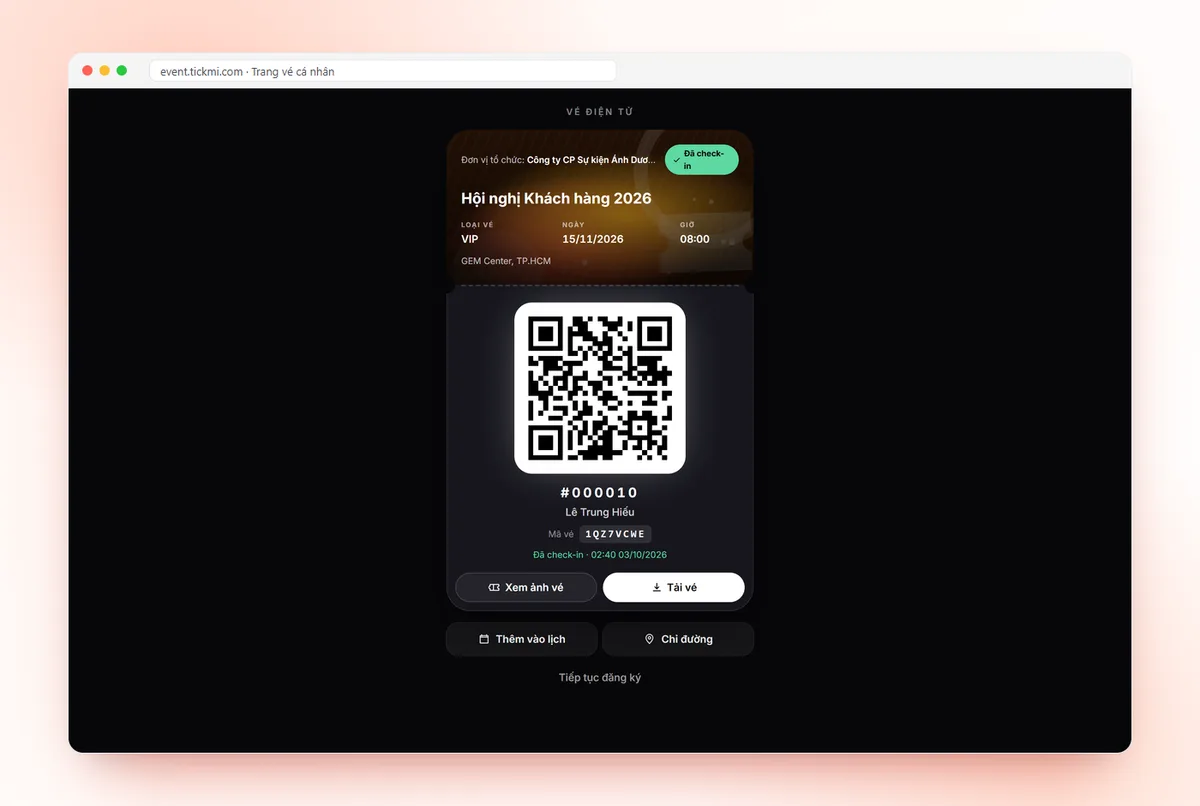
A wedding invitation with a QR code is an electronic wedding invitation where each guest receives their own link carrying the guest's name, and after confirming, gets their own QR code. This QR code is used to welcome guests at the reception door, replacing the search for names on a printed list.
Compared with a paper card or one invitation image sent to everyone on Zalo, a QR wedding invitation solves three things the couple usually has to ask each person about:
- Who is coming: guests reply on the invitation themselves, with no need for phone calls.
- How many people: guests enter the number of accompanying people when confirming.
- Who has arrived: greeting staff scan the code and the number of guests who have arrived shows right away.
An online wedding invitation can still be printed on paper to give to grandparents and older relatives. Electronic and paper invitations don't exclude each other.
What can Tickmi do for wedding invitations, and what can it not do?
Tickmi handles three stages: sending the invitation, receiving attendance confirmation and welcoming guests with QR codes. Tickmi does not do the other parts of a wedding, and you should know that in advance so you can choose other tools.
| Task | Tickmi | Notes |
|---|---|---|
| Make an online wedding invitation, "Wedding" occasion | Yes, free | On the online invitation page |
| A personal link with each guest's name | Yes | One link per guest |
| Guests confirm whether they are coming | Yes | "I will attend" / "Unable to attend" |
| Record groom-side or bride-side guest, accompanying people, wishes | Yes | Fields created ready-made for weddings |
| Count guests and download an Excel list | Yes | The "RSVP invitations" screen |
| Scan QR codes to welcome guests at the door | Yes | With the greeter's phone |
| Table plan, seating arrangement | No | Use the downloaded Excel file to arrange tables |
| Recording envelopes, gift money, wedding gifts | No | Keep a separate record the traditional way |
Step 1: Make and send the online wedding invitation
An online wedding invitation on Tickmi starts on the online invitation page, choosing the "Wedding" occasion. Making the invitation is free, and you don't need to create anything in Tickmi Studio yet.
- Open Tickmi's online wedding invitation and choose the Wedding occasion.
- Fill in the bride's and groom's names, the guest arrival time, the banquet start time, the restaurant name and the hall.
- Create a personal link for each guest so the invitation shows the recipient's name.
- Send the link via Zalo, Messenger or text message. If a guest has an email, the system emails the guest.
For a wedding, the arrival time and the banquet start time are usually different. The invitation should state both so guests don't arrive too early or miss the ceremony.
Step 2: Turn on attendance confirmation to know who is coming
The Turn on attendance confirmation button turns the wedding invitation into a ticket product in Tickmi Studio. From the moment you turn it on, the invitation is the ticket template: it has the guest's name and its own QR code.
For the Wedding occasion, Tickmi automatically creates three info fields for attendees:
- Guest of: Groom's side or Bride's side.
- Accompanying people: to know how many people one invitation covers.
- Wishes: guests send wishes to the bride and groom.
Guests open the link and choose I will attend or Unable to attend. The RSVP invitations screen shows four numbers: Attendees, Attending, Not attending and No reply. Click Download list (Excel) to get a file for the restaurant or to use for arranging tables.
Creating a confirmation link consumes ticket issuance quota. One unit per guest; new accounts come with 100 units of ticket issuance quota. Step-by-step actions for each screen are in the guide to online invitations and attendance confirmation.
Step 3: Welcome guests with QR codes at the reception door
On the wedding day, the greeter just opens their phone and scans the QR code on the guest's invitation. The number of guests who have arrived shows right away in Tickmi Studio, and the groom's and bride's families look at the same figures.
A simple layout suggestion:
- Assign 1-2 greeters for each side, each using their own phone to scan.
- Put the greeting desk right at the hall entrance, with enough light for the camera to read codes.
- If a guest forgot to open the invitation, search by name instead of making the guest wait.
- Don't block guests without a code. A wedding is not a conference: scanning the code is for counting and greeting guests, not for checking tickets.
Details on scanning and usable devices are in the article QR code check-in. If you want a lucky draw for guests in the middle of the banquet, you can use Tickmi's free lucky draw tool.
Wedding invitation with QR code checklist
Go through this list before sending invitations to both families:
- [ ] The names of the bride and groom, the lunar date (if included) and the solar date match.
- [ ] Both the guest arrival time and the banquet start time are included.
- [ ] The restaurant name, hall and floor are fully stated.
- [ ] You sent the link to yourself, opened it on a phone and tried confirming.
- [ ] You agreed who on the groom's and bride's sides is responsible for sending links to guests on their side.
- [ ] There is enough ticket issuance quota for the expected number of guests.
- [ ] The greeters have signed in and tested scanning one code before the reception time.
Common mistakes with online wedding invitations with QR codes
Most mistakes come from sending one shared link to everyone, or not reminding guests to reply.
| Mistake | Consequence | How to avoid it |
|---|---|---|
| Sending one shared link to a Zalo group | You don't know who has replied | One personal link per guest |
| Not asking for the number of accompanying people | Too few or too many tables booked | Keep the "Accompanying people" field |
| Ignoring the "No reply" group | The guest count confirmed with the restaurant is wrong | Message them again before the table-count deadline |
| Scanning in a poorly lit place | Guests stand waiting at the door | A well-lit greeting desk, with a plan to search by name |
If you need QR invitation tickets for another program such as a company party or conference, see the QR invitation tickets page and the article online invitation card templates.
Written by the Tickmi team, updated 22/10/2026.
About Tickmi
Tickmi is a ticketing and attendee experience platform (Ticketing & Participant Experience Platform). On one unified attendee dataset, Tickmi connects the whole journey: issuing invitation, registration and paid tickets, sending branded QR tickets, check-in by app, kiosk or scanner — even offline — then the welcome screen, lucky draw, voting, quizzes and surveys. Tickmi is trusted by organisations such as Viettel, VNPT, MobiFone, FPT and CMC. Learn about Tickmi or try it free.
Frequently asked questions
Is there a free way to make an online wedding invitation with a QR code?
Yes. Tickmi's online invitation page lets you make an invitation for free with the Wedding occasion and a personal link per guest. When you turn on attendance confirmation, creating confirmation links consumes ticket issuance quota; new accounts get 100 units.
How do guests confirm attendance at the wedding?
Guests open their own invitation link, choose I will attend or Unable to attend, and enter whether they are groom-side or bride-side guests, the number of accompanying people and a wish if they like.
How do I know how many groom-side and bride-side guests will come?
The RSVP invitations screen in Tickmi Studio shows the numbers for Attendees, Attending, Not attending and No reply. Click Download list (Excel) to filter by the Guest of column.
Does Tickmi arrange tables or record wedding gift money?
No. Tickmi handles sending invitations, attendance confirmation and QR scanning to welcome guests. You make the table plan and the gift record separately, and can base them on the Excel file downloaded from Tickmi.
What about older guests who don't use phones?
You can still hand out paper invitations as usual. At the door, the greeter searches by the guest's name instead of scanning a code.
Issue QR tickets, send emails, check in and engage attendees on one platform.