
Knowledge
Criteria for choosing ticketing and check-in software: a scorecard and demo questions
Every vendor's feature sheet is full of check marks. What you need to know is whether the software can survive the morning of the event, when 300 people are standing at the gate and the network is flaky. This article gives you a scorecard, a set of questions and a 30-minute test to compare vendors fairly, even if you have never bought this kind of software before.
Selection criteria start from your requirements, not from a feature list
Before watching any demo, write down the following five lines. They decide almost all of the scoring result:
- Scale: the highest number of attendees in one session, and the number arriving in the first 15 minutes (this number decides how many gates you need).
- Ticket type: free invitation tickets, registration tickets, or paid tickets that collect money.
- Environment: stable or weak signal, one gate or several, indoors or outdoors.
- Staff: who will scan (reception staff, volunteers, security) and what devices they are used to.
- Post-event data: who needs reports, in which format, sent to whom.
If you are not sure which check-in method to use (paper, QR, chip cards), first read comparing QR, RFID and paper-list check-in. If you are considering building your own system, see build it yourself or use an existing platform.
An 8-group criteria scorecard
Copy this table into a file, one column per vendor. Score 0 (absent), 1 (present but weak), 2 (meets well), then multiply by your own importance level. The last column tells you how to verify it right during the demo:
| Group | Core question | Typical importance | How to verify |
|---|---|---|---|
| 1. Scanning and validation | Can it scan QR codes and barcodes, and take manual code entry? Does it clearly report used, expired and cancelled tickets? | Required | Scan one valid ticket, one already-scanned ticket, one made-up code |
| 2. Working when the network is down | Can it scan with no signal? How does it resync, and how are duplicate scans handled? | Required if the venue has weak signal | Turn off Wi-Fi on the demo device and keep scanning |
| 3. Multiple gates, multiple devices | Do several scanners at once give consistent results and block duplicate scans across gates? | Required from a few hundred people | Scan the same ticket on two devices |
| 4. Attendee data | Is importing from Excel easy? Does it report errors row by row? Are there custom fields? What can be exported, and who can export? | Required | Import a sample file with deliberate errors |
| 5. Tickets and email | Are tickets branded with your identity? How does bulk sending work, and is there tracking of failed sends? | High | Send one ticket to a real inbox |
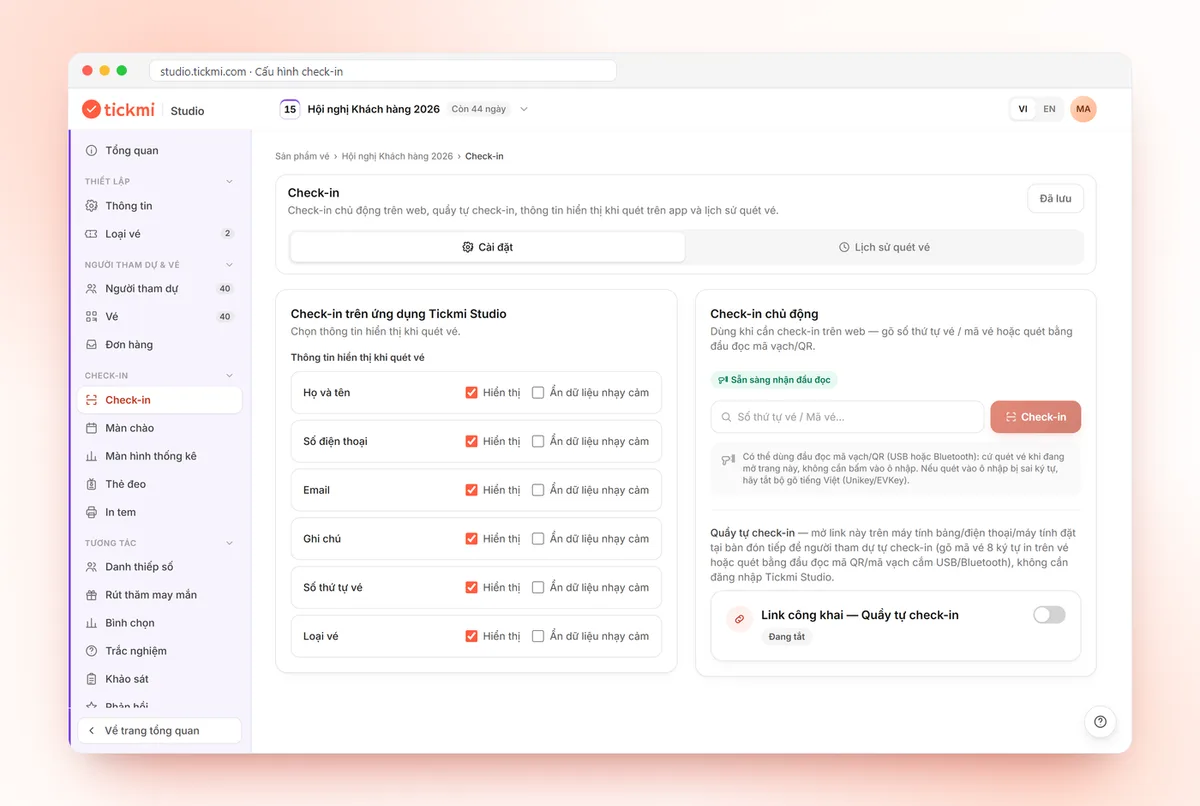
| 6. Permissions and security | Can scanning staff see all personal data? Can information be partly hidden when scanning? | High | Sign in with the lowest staff role |
| 7. Reports and tracking | Are there live progress statistics? Does the scan history record who scanned, when and with which device? | Medium | View the history after a few scans |
| 8. Support and pricing method | Who answers at 7 am on the event day? What is the cost based on (number of tickets, number of events, devices)? | High | Ask and request the answer in writing |
What matters is seeing clearly where a vendor is weak and whether that weakness touches your required criteria.
Explaining a few criteria that are often misunderstood
Working offline does not mean it is done
Most vendors say they have an offline mode. Keep asking: does the data have to be downloaded to the device first, or is it already there? What happens when two devices scan the same ticket while offline? When the network returns, how does the system merge the scans and where does it show you the conflicts? For example, in Tickmi you tap Download offline data while still online, offline scans sync automatically when the network is back, and duplicates between two devices are listed under Conflicts to resolve. The article on check-in when the network is down describes this scenario in more detail.
Permissions are more than having two account types
The person at the gate only needs to see the name and ticket type, not the phone numbers and emails of the whole list. Check whether the software lets you choose which fields show on the scan screen, whether it masks sensitive data, and who can export the entire list. Attendees' personal data is your responsibility; read more at protecting attendee data.
Cost: ask how it is calculated, not just for a number
Two quotes may not be comparable if one charges by tickets issued, another by event, and another by device or by month. Ask every vendor to price the same scenario of yours (for example 600 people, 3 sessions, one schedule reminder send), then ask about items that may come up: sending extra emails, adding scanning staff, printing badges, on-site support.
A 30-minute demo test: make the vendor do it for real
A beautiful demo usually uses clean data. Ask them to do your actual job, with your data:
- Import 20 rows of your real data, including one wrong email, one duplicate row and one name with complex Vietnamese diacritics. Observe how the software reports errors.
- Issue tickets for that list and send them to your own inbox. Check that the ticket displays correctly on a phone and whether names lose their diacritics.
- Scan the ticket with an ordinary phone, not the vendor's device. Try scanning in dim light.
- Scan the same ticket again, then scan a ticket from another event. Is the result screen clear enough that the person at the gate does not need to read for long?
- Turn off the network on the scanning device and keep scanning 3 tickets. Turn the network back on and check whether the scans are complete and whether there are duplicates.
- Sign in with the lowest staff account and try to export the list.
- View the reports: check-in rate, scan history and the export file after the event.
A list of what to prepare close to the event day is in the check-in desk checklist, which works well as a testing script.
Warning signs to consider carefully
- They do not let you trial with your own data, only showing videos or slides.
- They answer "yes" to every question but cannot point to the button or screen where the feature lives.
- They do not say clearly how they handle two devices scanning the same ticket or a network outage.
- They do not let you export all of your data to a file, or only after paying extra.
- You must buy separate hardware to use it, without saying who provides warranty service when a device breaks mid-event.
Conversely, a good sign is when the vendor states the product's limits before you ask. Admitting "we have not built this part" lets you plan a backup much earlier.
How Tickmi meets these criteria
To give you a concrete example to compare against, here is how Tickmi's check-in software answers some of the groups in the table, based on public guides:
- Scanning and validation: the Tickmi Studio app scans QR codes or barcodes, has Enter ticket code for blurry tickets, and clearly reports Check-in successful, Already used (with the earlier check-in time), Invalid ticket, Cancelled. See the guide to check-in with the app.
- Readers and kiosks: USB or Bluetooth barcode readers work right away, and attendees can self check-in at a kiosk.
- Permissions: the Check-in staff role is separate from Administrator; only the Owner and Administrators can export the list. There is an option to hide sensitive data on the scan screen.
You do not need to take this description on trust: use the scorecard above and the 30-minute test to verify, with Tickmi as with any other vendor.
See an overview of the stages Tickmi covers on the event management software page. A short introduction to the platform is on the What is Tickmi page.
About Tickmi
Tickmi is a ticketing and attendee experience platform (Ticketing & Participant Experience Platform). On one unified set of attendee data, Tickmi connects the whole journey: issuing invitation tickets, registration tickets and paid tickets, sending branded QR tickets, checking in by app, kiosk or scanner — even when the network is down — and then the welcome screen, lucky draw, polls, quizzes and surveys. Tickmi is trusted by organizations such as Viettel, VNPT, MobiFone, FPT and CMC. Learn about Tickmi or try it free.
Frequently asked questions
What is the most important criterion when choosing check-in software?
Reliability at the entrance: fast scanning with a clear result, working when the network is down, and blocking duplicate scans across several gates. Other features only matter once these three are solid.
What should I test when watching a check-in software demo?
Import your real data with deliberate errors, send tickets to your own inbox, scan with an ordinary phone, rescan a used ticket, turn off the network and keep scanning, and try to export the list with the lowest staff account.
How do I compare quotes between ticketing software vendors?
Ask every vendor to quote the same concrete scenario (number of people, number of sessions, number of email sends) and ask clearly how it is calculated: by tickets issued, by event, by device or by time, plus items that may come up.
Do I need to buy a dedicated scanner?
Not necessarily. Many events use phones with a scanning app. Barcode scanners are only needed when arrivals are very concentrated or when printed paper tickets need fast scanning. Ask the software vendor whether it works with the devices you already have.
Can I export attendee data when I switch vendors?
This is a question to ask before you sign. In Tickmi, the Owner and Administrators can export the attendee list with check-in status to a file at any time.
Issue QR tickets, send emails, check in and engage attendees on one platform.