
Knowledge
Recurring meetups and clubs: ticketing, registration and attendance made simple for small teams
One meetup is not hard. The hard part is the eighth one, when it is still just one or two volunteers doing the work and starting from scratch every time: a new form, a new chat group, a new paper list. This article helps you build a framework you can reuse for every session, split the work by milestone, and see who keeps coming back.
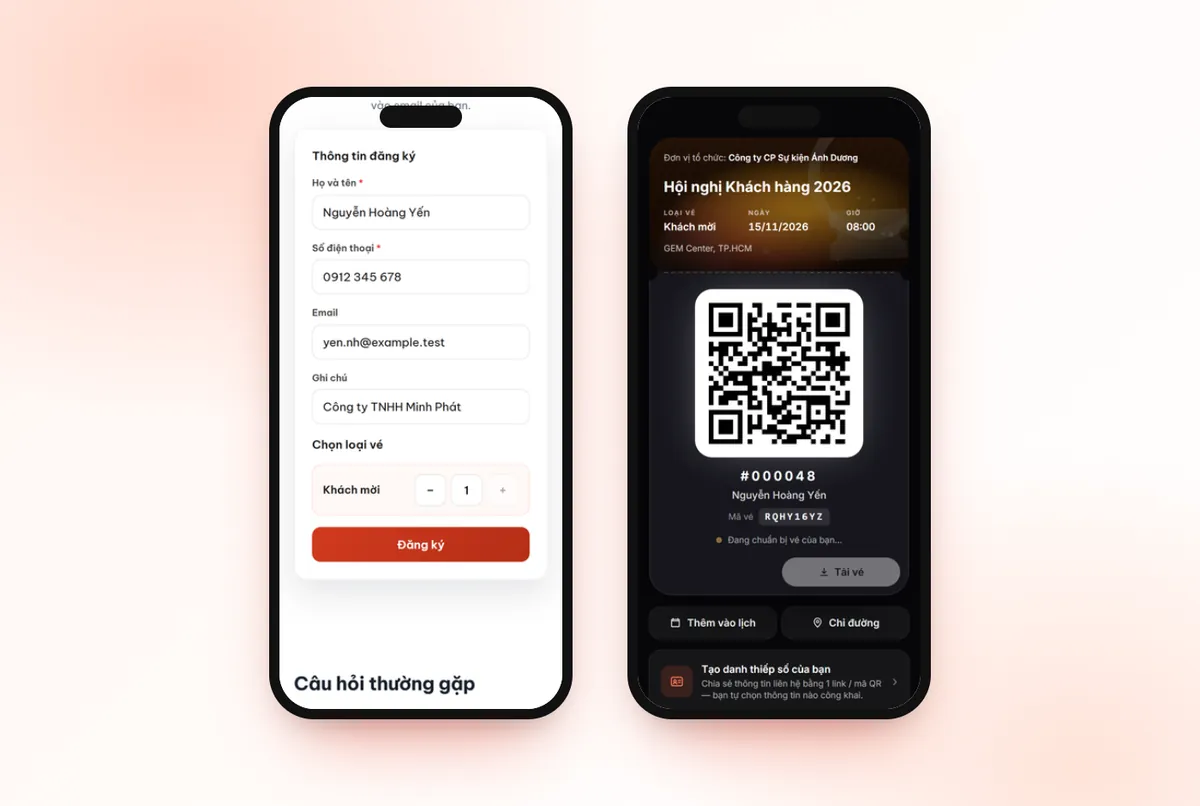
How a community meetup differs from a conference
When you plan ticketing or open registration for a meetup, a club or a hobby group, you run into traits that larger programs rarely face:
- It repeats regularly. Monthly or quarterly, with the same organizing group, and most attendees are returning people.
- The organizing team is very thin. Usually volunteers working in their spare time, with nobody dedicated to answering messages.
- Seats are limited. A coffee shop, a sponsored meeting room, a coworking space: a few extra people and it is crowded.
- Both members and new guests. Familiar members are easy; new guests need a welcome and a quick way to get to know people.
So the goal is not a complete process, but a process with the fewest repeated tasks for the organizer.
Step 1: build a framework you can reuse for every session
Do this part once. For later sessions you only change the date, topic and venue.
| Reusable part | Set up in Tickmi Studio | Notes |
|---|---|---|
| Ticket template | Template library → E-ticket templates | Shared across the whole organization. Add the group logo and insert the attendee's name with Merge fields. |
| Ticket email template | Template library → Email templates | Pre-write the group introduction, the ground rules and the chat group link. Each session you only edit the topic paragraph. |
| Information fields | Attendee information fields | Create them at the organization level and switch them on again each session. Suggestions: "How did you hear about us?", "First time joining?". |
| Ticket types | Settings → Ticket types | Keep the same names across sessions so they are easy to compare, for example "Member" and "Guest". |
Each session is its own ticket product. This keeps the list, check-ins and feedback of each session separate and makes later comparison easy. Tickmi does not yet have a button to duplicate a ticket product, so when you create a new session you create the ticket product and then pick the existing templates again. For the steps to create a ticket product, see the getting started with Tickmi Studio guide.
Step 2: choose how to issue tickets for the meetup
Three models are common in small communities:
- Free, open registration. The ticket type uses the Open registration tab, with Registration from and Registration to set. Good for networking sessions and knowledge sharing with a venue sponsor.
- Paid entry. The ticket type uses the On sale tab: buyers pay through VNPay and receive a QR ticket by email, so you do not have to reconcile bank transfers one by one. Good when you need to cover drinks or room rental. See the online ticket sales guide.
- Combined. A "Member" ticket type issued from a list, and a "Guest" ticket type with open registration or on sale. Same ticket product, same check-in list.
If you are torn between free and paid because you worry registrants will not show up, the article free or paid registration to reduce no-shows analyzes each option in depth.
A note on limited seating: Tickmi does not automatically close registration when the cap is reached and has no waitlist. When you are nearly full, turn off Allow registration for the ticket type. If you want to pick people, turn off Auto-approve registrations so tickets are issued only to the people you approve.
Step 3: a task schedule for each meetup
Once the framework is in place, a session is only about a dozen tasks. Print this table or paste it into the organizers' group:
| Milestone | Task | Who |
|---|---|---|
| 2 weeks before | Create the ticket product, choose templates, open registration or start sales, post the link in the group | Lead organizer |
| 2 weeks before | If you have a member list: import the Excel file into the "Member" ticket type | Lead organizer |
| 1 week before | Check the registration count, remind the group if seats remain | Communications |
| When nearly full | Turn off Allow registration | Lead organizer |
| 1 day before | Send a reminder with the time, venue and how to find the room | Communications |
| Event day | Scan tickets with the phone app, welcome new guests | Both |
| 1–2 days after | Send a thank-you with a feedback link, photos and the next session announcement | Communications |
One note on Excel import: it only adds new people and does not update people already on the list. Review the file before importing so you do not have to fix rows by hand.
Checking in meetup attendees by phone, no extra equipment
For a few dozen people, one phone with the Tickmi Studio app is enough. Each team member signs in with an account that has been added to the organization and scans the QR code on each person's ticket. If someone forgets their ticket or their phone battery dies, tap Enter ticket code and type the 8-character Ticket code. Where the signal is weak, download offline data before the connection drops. For details, see check-in with QR codes.
Full attendance tracking is not only about knowing who came. It is the only data that tells you whether the group is growing.
Know who comes back and help new guests get acquainted
Returning people. After each session, the Owner or an Admin uses Export data to download the list with check-in status. Combine the files from several sessions in Excel and compare by email, and you will see who attends regularly, who came only once, and who registered several times but never showed up. These three groups need three different kinds of messages.
New guests. Turn on Digital business card in the Engagement group of the ticket product. Attendees create their card right from the ticket page, then show the QR code to each other to save to their contacts, instead of asking everyone for their number. For how to turn it on, see the digital business card guide.
Feedback and topic ideas. The Feedback section in the Engagement group collects ratings and comments after the session, and has a button to send a thank-you email to everyone who checked in. If you want to ask one more specific question such as "What topic would you like to hear next time?", create a short Survey.
Common mistakes with recurring meetups
- A different form every session. The data is scattered and cannot be compared across sessions. Keep the same information fields and the same ticket type names.
- Registration through comments or messages. Nobody knows exactly how many people are coming, and on the day you are short of chairs or have too much food.
- Skipping check-in because "it's all familiar faces". Without numbers you cannot tell which session drew people or which topics to repeat.
- Forgetting to welcome new guests. New guests who are not introduced often do not return. The question "First time joining?" in the form helps you spot them.
To see how Tickmi brings the ticket purchase page, payment, QR ticket delivery and check-in together in one place, see the online ticket sales solution; if your group mostly opens free registration, see the online registration page.
About Tickmi
Tickmi is a ticketing and participant experience platform. On a single, unified set of attendee data, Tickmi connects the whole journey: issuing invitation, registration and paid tickets, sending branded QR tickets, checking in with an app, kiosk or scanner (even offline), and then moving on to the welcome screen, lucky draw, polls, quizzes and surveys. Tickmi is trusted by organizations such as Viettel, VNPT, MobiFone, FPT and CMC. Learn about Tickmi or try it free.
Frequently asked questions
For a recurring meetup, should I create one ticket product for the whole year or one per session?
Create one ticket product per session so the list, check-ins and feedback stay separate. Ticket templates, email templates and information fields are shared across the organization, so later sessions only need you to pick them again.
Can I give free tickets to members and sell tickets to guests at the same time?
Yes. Create two ticket types in the same ticket product: a "Member" type issued from a list or open registration, and a "Guest" type that is on sale. Both are scanned with the app at the door.
Do I need a dedicated scanner to check in meetup attendees?
No. For a few dozen people, one phone with the Tickmi Studio app is enough to scan the QR codes on tickets. Anyone who forgot their ticket can enter the 8-character Ticket code.
How can I tell which members come back over many sessions?
After each session, the Owner or an Admin uses Export data to download the list with check-in status, then combines the files in Excel and compares them by email.
Does registration close automatically when seats run out?
No. Tickmi does not automatically close registration when the cap is reached and has no waitlist. When you are nearly full, turn off Allow registration for the ticket type, or turn off auto-approval so tickets go only to the people you choose.
Issue QR tickets, send emails, check in and engage attendees on one platform.