
Knowledge
Online prize draw for classrooms and companies: 5 scenarios
One draw tool covers more jobs than you might think: calling on students, splitting teams, year-end gifts, picking a livestream winner. The difference comes down to a few settings. This article gives 5 scenarios with concrete configurations on Tickmi's free tool.
The basics: 3 options decide how the draw works
With Tickmi's free online prize draw tool, every scenario below differs only in three options in the Settings section:
| Option | Meaning | When to change it |
|---|---|---|
| Winners per draw | From 1 to 100 | Drawing several people at once, splitting teams |
| Exclude previous winners from later draws | On: nobody wins twice | Turn off when you want someone to be callable again |
| Spin time | From 3 to 30 seconds | Short for classrooms, long for award moments |
Just paste the list, one person per line; if you paste two columns from Excel, the second column appears in small text under the name (class, department, ticket number). All examples below are illustrative assumptions. If you only need to draw a number instead of a name, the free online number draw tool can do that too.
Scenario 1: Classroom, choosing who speaks
A teacher wants to call on students without being accused of favoritism. Paste the class list, and put a number or group in the second column.
- Winners per draw: 1. Spin time: 3 to 5 seconds to keep it quick.
- Music: No sound so the class stays quiet.
- Exclude previous winners: on so everyone gets a turn, then press Reset draw once everyone has been called.
Tip: before the lesson, state the rule "whoever is called answers or asks a classmate for help". Students will see being called as fair, not as being singled out.
If you want the whole class to watch the result, open the random name wheel on the projector: each name is a slice, and the wheel stops at one person at random.
Scenario 2: Team meeting, splitting into teams
You have 24 people to split into 4 teams. With the tool, each draw produces one team.
- Paste the list of 24 people.
- Set Winners per draw = 6 and keep the exclude-previous-winners option on.
- Change the Prize name to "Team 1" and draw. Then change it to "Team 2" and draw again, and so on.
- Open the Draw results table: each draw is one team, and you can download a CSV to send out the team lists.
This avoids typing each team by hand and nobody ends up on two teams. If you need to balance by department, split into groups first and then draw separately within each group.
Scenario 3: Year-end party, drawing gifts by prize
This is the classic scenario. Set it up from the smaller prizes up to the big ones so the climax comes last.
| Prize | Winners per draw | Spin time |
|---|---|---|
| Consolation prize (assumed example) | 5 | 8 seconds |
| Third prize | 3 | 10 seconds |
| First prize | 1 | 15 to 20 seconds |
Change the On-screen title to the name of your program, pick a stage color that matches the backdrop, and turn on full screen. The articles lucky wheel for company parties and new-year prize draw have more scripts for each occasion.
Scenario 4: Livestream, picking a winner from comments
The tool does not pull comments from the platform automatically. You need to copy the names of eligible people (for example, an assumed rule: commented in the right format) into the list box, one per line.
- Remove duplicates and invalid accounts before pasting. Two identical lines count as two people, which raises that person's chances.
- Share your screen so viewers can see, and play light music or turn the music off if you are talking.
- After the draw, read the winner's name aloud, download the CSV as a record, and set a deadline for claiming the prize.
The list stays on your computer so you don't need to worry about data being sent anywhere, but you should still keep the original. For how to make viewers trust the result, see fair random drawing.
Scenario 5: Seminar, drawing gifts for people who are present
For a small seminar, you can paste the list of people who arrived (cross-checked against the attendance file) and draw gifts at the end. Paste two columns, name and organization, so the MC can read the full details.
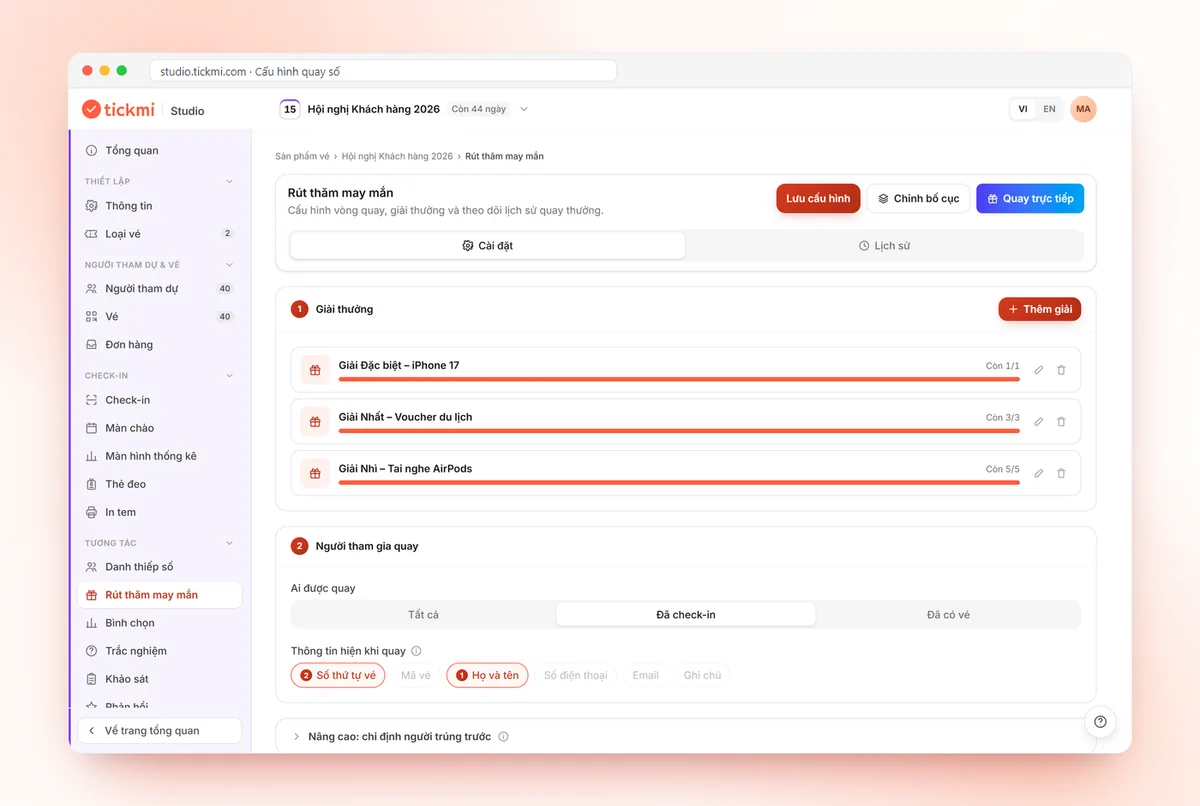
If the program has many attendees, a winner who is absent is a big problem. In that case use lucky draw in Tickmi Studio, since it draws straight from the list of people who have checked in. Setup is covered in the live lucky draw guide.
Preparing the list from Excel or Google Sheets
Most mistakes come from the list, not the tool. Before pasting, do three things: delete blank rows and the header row, check that duplicate names really are two different people, and decide what the second column should show. For a classroom this could be the group; for a company, the department; for a seminar, the workplace. The second column helps the MC or teacher read out the right person when names repeat, and helps the audience recognize the winner faster.
If you use a spreadsheet, select the two columns you need, copy them and paste straight into the list box. No need to convert to another file. After pasting, look at the count shown right under the input box and compare it with the number of rows in the spreadsheet.
General checklist before the draw
- List pasted, and the count shown matches the original list.
- Prize name, winners per draw and spin time adjusted for each draw.
- Sound: on or off to suit the space.
- Rules announced in advance: who is eligible, and whether a winner can be drawn again.
- After each prize, download the CSV or take a screenshot of the result.
- History is stored in the browser, so don't close or clear browser data midway.
Common mistakes
| Mistake | How to avoid it |
|---|---|
| Forgetting to change the prize name between draws | Change the name before each draw so the history is clear |
| Splitting teams with exclude-previous-winners turned off | Keep it on so nobody lands in two teams |
| Pressing Clear history in the middle of a draw | Previous winners become drawable again; download the CSV first |
| Pasting names with stray characters from a spreadsheet | Check the count under the input box to spot blank or repeated lines |
About Tickmi
Tickmi is a ticketing and attendee experience platform (Ticketing & Participant Experience Platform). On one unified attendee dataset, Tickmi connects the whole journey: issuing invitation, registration and paid tickets, sending branded QR tickets, check-in by app, kiosk or scanner — even offline — then the welcome screen, lucky draw, voting, quizzes and surveys. Tickmi is trusted by organisations such as Viettel, VNPT, MobiFone, FPT and CMC. Learn about Tickmi or try it free.
Frequently asked questions
Can an online prize draw be used for both classrooms and companies?
Yes. With the same tool, you only change the winners per draw, spin time and music to fit the situation. No account registration is needed.
How do I split teams at random using the wheel?
Set winners per draw to the number of members in one team, keep the exclude-previous-winners option on, then draw each team in turn and rename the prize to Team 1, Team 2. The results can be downloaded as CSV.
Does the tool automatically pull the list of livestream commenters?
No. You copy the names of eligible people from the livestream platform and paste them into the list box, one per line.
How do I draw only among people who are present at a seminar?
For a small list, paste the names of people who have arrived. For a program with tickets and check-in, use the lucky draw in Tickmi Studio to draw straight from checked-in attendees.
Where are the draw results stored?
In the browser on your computer, and you can download them as a CSV file that opens in Excel from the Draw results table.
Issue QR tickets, send emails, check in and engage attendees on one platform.