
Knowledge
Amateur sports tournament tickets: athlete registration and spectator tickets
An amateur tournament has two very different groups: athletes who need to be registered, screened and given badges, and spectators who only need a ticket to get through the gate. Merging them into one list is the fastest way to create a mess. This article shows how to separate the two groups on Tickmi, with a team registration form, an approval process and match-day check-in.
Separate two ticket types from the start: athletes and spectators
Create at least two ticket types in the same ticket product: Athlete and Spectator. Each has its own capacity limit, registration period and approval method. That way the athlete list does not mix with people coming to cheer, and you can filter each group with the All ticket types box in the attendee list.
| Ticket type | Approval | Why |
|---|---|---|
| Athlete | Manual approval | Organizers check the team, age and events before finalizing |
| Spectator | Auto-approved | Anyone can register and receive a ticket immediately |
| Organizers, referees, volunteers | Add by hand or import from Excel | Internal list, needs badges but does not go through public registration |
When a ticket type is full, no more can be approved and the system reports the remaining spots, which is handy for tournaments that cap the number of teams or the venue capacity.
Registration form for athletes: collect exactly what match day needs
Go to Settings → Information → the Attendee info fields tab and create the fields shared across the tournament. Suggestions:
- Team name: free text. Required, so you can group people by team when cross-checking.
- Event category: a choice list (for example men's singles, women's doubles, team). Use a list so everyone picks the same wording.
- Shirt size: a choice list, if the tournament hands out jerseys.
- Portrait photo: the Photo type, if you need to print badges with photos. How to do it is in the article badges with portrait photos.
- Emergency contact phone number: a Phone number field, with input rules that validate as it is filled in.
Then turn these fields on for the ticket product and open the Registration form to choose which fields appear and which are required. For text fields you can set input rules such as digits only or exact length; the form reports an error as soon as the input is wrong. Details are in the guide to creating a registration page.
Opening registration and approving athlete applications
- Open the Athlete ticket type, go to the Open registration tab and turn on Allow registration.
- Set Registration from and Registration until according to the application deadline; set Maximum tickets per registration to 1 if each person registers for themselves.
- Set a limit per email or phone number if you want to avoid duplicate registrations.
- Turn off Auto-approve registrations. Registrants see a notice that the ticket will be sent after the organizers approve, and appear in the Pending approval status.
- Approve each person, or tick several and click Approve selected after cross-checking the team.
The system only issues the ticket and uses the matching ticket issuance quota when you approve, so applications not yet approved do not consume quota. If the tournament charges an entry fee, create that ticket type as an on-sale type instead of free registration; the setup is in the guide to selling tickets online. If you need to collect per team with many members, also see group registration.
What Tickmi does not do: manage the match schedule, draw groups, or record match results. Keep that in the organizers' spreadsheet; Tickmi handles registration, tickets, badges and check-in.
Spectator tickets: free or ticketed
Tournaments at schools or in residential areas often let spectators in freely. In that case turn on Auto-approve registrations for the Spectator ticket type: anyone who fills in the form gets a QR ticket immediately, and you know the headcount in advance to prepare seating and water. If the tournament charges for tickets, use the Sales tab of the ticket type. A registration ticket is a free ticket, so these two methods are not mixed within the same ticket type.
Match day: badges and check-in split by group
- Athletes: print badges with name, team and event category; scan the QR at the badge pickup desk to know who has arrived and which teams are still missing people.
- Spectators: scan the QR ticket at the gate, no badge needed.
- Organizers, referees: import from Excel once, print separate badges.
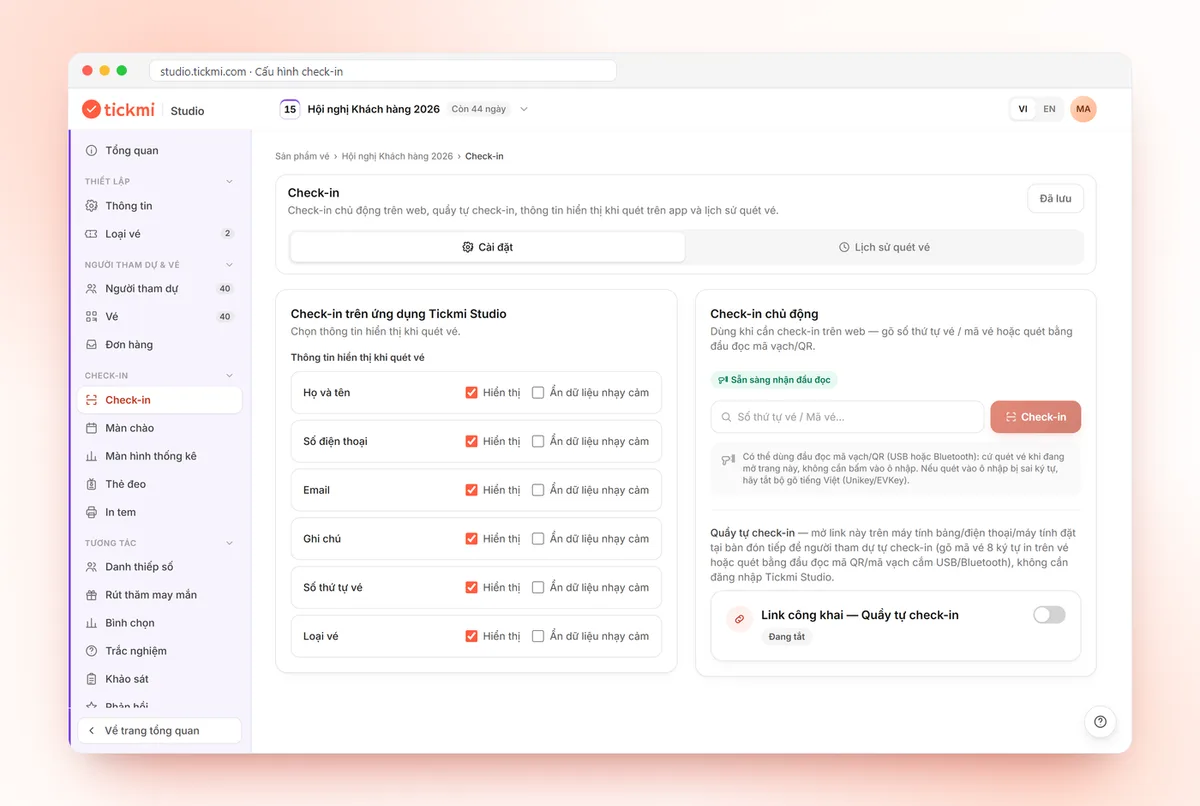
Splitting the two check-in points keeps the athlete line (which needs team cross-checking and jersey handout) from blocking the spectator flow. The detailed scanning process is in the article QR code check-in. After the tournament, filter by ticket type and click Export data to get each group's list; only the Owner and Administrators can export.
Suggested preparation timeline for a one-day tournament
| Milestone | Task |
|---|---|
| 6 weeks before | Create ticket types, info fields and the registration page; open athlete registration |
| 3 weeks before | Close the application deadline, approve applications, open spectator registration |
| 1 week before | Cross-check team lists, print badges, run a QR scanning test |
| Match day | Check in athletes and spectators at two separate points |
| After the tournament | Export lists, cross-check absentees |
The timeline is only a hypothetical example; adjust it to the size of your tournament.
Common mistakes when ticketing a tournament
- One ticket type for everyone: you cannot filter athletes and cannot tell which teams are short of people.
- Letting athletes type team names freely: the same team gets several spellings. Make the field required and remind people of a consistent spelling, or cross-check again when approving.
- Auto-approval for athletes: applications that do not meet requirements still get tickets and take up spots.
- Forgetting photos before printing badges: collect photos early, because a badge missing its photo must be reprinted.
You can try the whole process with 100 free ticket issuances; other packages are in the pricing. If the tournament sells tickets to spectators, also see Tickmi's online ticket sales page.
About Tickmi
Tickmi is a ticketing and participant experience platform. On a single, unified set of attendee data, Tickmi connects the whole journey: issuing invitation, registration and paid tickets, sending branded QR tickets, checking in with an app, kiosk or scanner (even offline), and then moving on to the welcome screen, lucky draw, polls, quizzes and surveys. Tickmi is trusted by organizations such as Viettel, VNPT, MobiFone, FPT and CMC. Learn about Tickmi or try it free.
Frequently asked questions
How do I make tickets for an amateur sports tournament on Tickmi?
Create two ticket types in the same ticket product: Athlete (manual approval) and Spectator (auto-approved or on sale), add info fields such as team name and event category, then send out the public registration link.
Can I collect athlete entry fees through Tickmi?
Yes, by creating the ticket type as an on-sale type (the Sales tab). A registration ticket is a free ticket, so you do not collect money through the registration form.
Does Tickmi draw groups or manage match schedules?
No. Tickmi handles registration, ticket issuance, badges and check-in. You manage the match schedule and results in a separate tool.
Do unapproved athlete applications consume ticket issuance quota?
No. A ticket is only issued and quota used when you approve, so applications in Pending approval status have not consumed quota.
Can I print badges with photos for athletes?
Yes. Create a Photo-type field for the ticket product, enter photos at registration or by zip file, then insert the photo into the badge template before printing.
Issue QR tickets, send emails, check in and engage attendees on one platform.