
Knowledge
How to use digital business cards to connect at an event
At the end of a conference, everyone takes home a stack of paper business cards and a few days later can't remember who is who. A digital business card solves exactly that, but only when the content is concise, exchanging is easy and users stay in control of their own information. This article goes through each part.
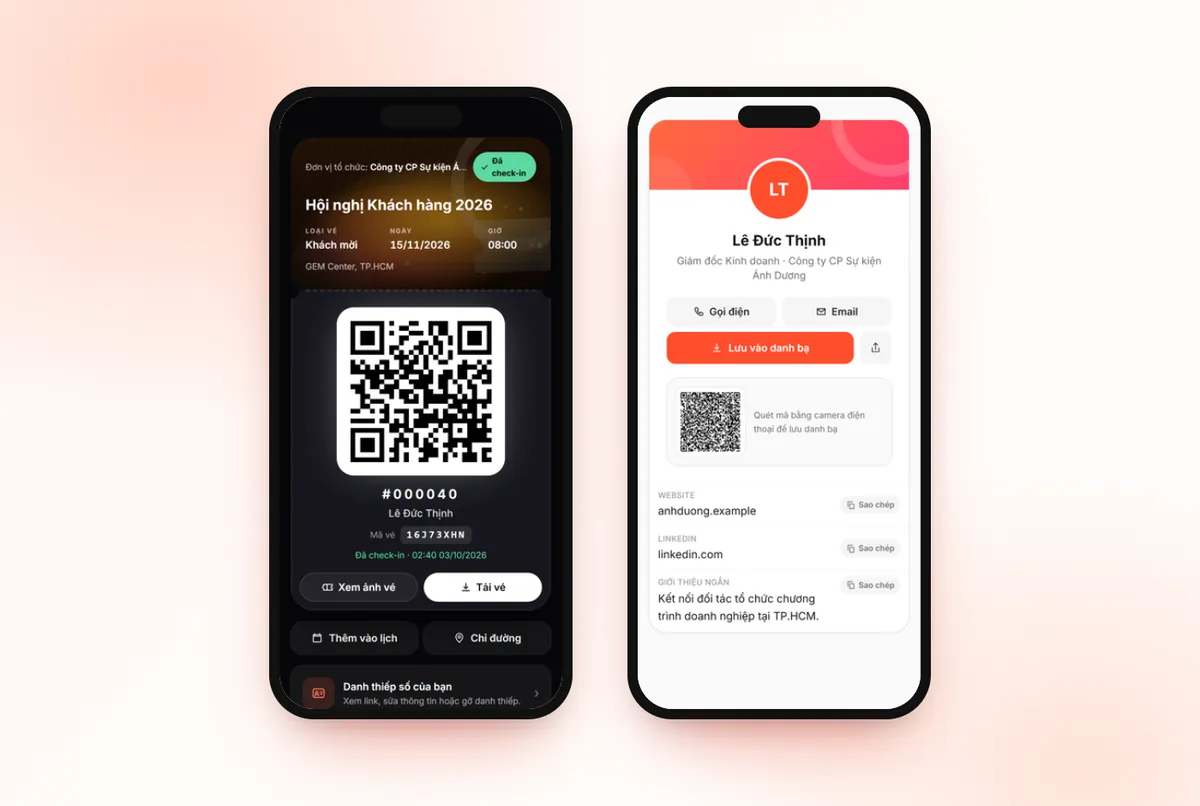
What is a digital business card, and how is it different from a paper card?
A digital business card is a person's online contact page: name, job title, company and ways to reach them. Others open it through a link or by scanning a QR code, then save it to their phone's contacts. No printing, nothing to carry.
The practical differences come down to three things:
- Always in your pocket. Paper cards run out exactly when you need them. A digital card is already on your phone.
- Saving a contact needs no retyping. The recipient taps save instead of photographing a piece of paper and typing in each number.
- Editable. If your job title or phone number changes, you edit it once and the old link is still correct.
The limitations should also be stated plainly: a digital card doesn't have the "handed over in person" weight of a nicely printed paper card, and it needs a phone with battery. At events where people meet many others in a short time, the advantage still leans toward the digital version.
Common ways to make a digital business card
| Method | What the recipient does | Things to note |
|---|---|---|
| Link and QR code to a contact page | Scan with the camera, open the page, tap save | No app to install; needs a network connection |
| Card or keychain with an NFC chip | Tap the phone against the card | The card must be bought in advance; not every phone can tap |
| Send a contact file or QR image by message | Open the file, save | Suits people who already know each other; a bit manual in a crowd |
| A third-party business card app | May need to install or sign up | Check carefully how they store and use contact data |
At an event with tickets, the most convenient approach is usually to attach the card to the attendee's own ticket: everyone already has the ticket page on their phone, so there is no extra link to remember.
What to put on a digital business card
A digital card isn't limited by paper size, so it's easy to fall into the trap of cramming in too much. A good card answers three questions: who you are, what you do and how to reach you.
| Group | Include | Consider |
|---|---|---|
| Main information | Display name, job title, company | The name exactly as you want to be called at the event |
| Contact | Email, one messaging channel you use often (for example Zalo) | Make your personal phone number public only if you really want to receive calls |
| Social media | LinkedIn if you use it for work | A personal Facebook usually doesn't fit a work context |
| Introduction | 1-2 sentences about what you do and how you can help | Avoid long paragraphs; readers only skim for a few seconds |
Tip: write the introduction the way you would introduce yourself in 10 seconds at the networking area. A line like "In charge of the southern distribution channel, looking for logistics partners" is far more useful than "Experienced expert".
Exchanging contacts at the event: 4 moments to use
- Before the event. Remind attendees to create their card in the ticket email. People who set it up in advance only need to show their code on the spot.
- Networking area, coffee breaks. Put up a small sign or show a reminder line on screen: "Open your ticket and show your card QR code for the person opposite to scan".
- Right after a discussion session. Just after hearing a good speaker is when people most want to connect. The MC can mention it in one sentence.
- After the event. Open the saved contacts and send a short greeting within a few days, while the other person still remembers you.
Organizers don't need to do more than that: create an encouraging atmosphere and make sure the tool runs smoothly. More ideas for creating interaction are in how to increase attendee interaction.
Privacy: attendees must be the ones who decide
This is a part many organizers underestimate. A card with a name, phone number and email is real personal data, and attendees should not be "made public automatically" just because they bought a ticket. Principles to keep:
- Opt in actively. Make a card public only when the attendee creates it themselves and clearly agrees.
- Choose field by field. Each piece of information can be public or hidden, and the attendee can change it at any time.
- Withdrawable. There is a way to remove the card, after which the old link and QR code no longer work.
- Not exposed to search engines. Only people with the link or who scan the code can view it.
- Organizers don't need to read the content. They only need to know how many people use it to gauge interest.
With Tickmi, the Digital business card feature is designed around these principles: attendees create it from their ticket page, choose each field as Public or Hidden, and can Remove card to withdraw consent. The organizer only sees the number of public cards and the total views. Detailed steps are in the digital business card guide. For data protection in general, see protecting attendee data; if you need a legal assessment for a specific case, ask your legal team.
How do you get attendees to actually use the card?
As with any feature: if no one reminds people, few will use it. A few simple ways:
- Put a view-ticket button in the ticket email so everyone has a link to their own ticket page, from which they create a card (see personal ticket page).
- Choose a card color palette that fits the event's identity so the page looks professional.
- Show attendees the benefit right away: "create it one minute early, and on the day you won't need to retype your phone number".
- Staff and speakers create their cards first, setting an example for others.
Common mistakes
- Making a personal phone number public and then receiving unwanted sales calls. If you only want to be contacted by email, hide the phone number.
- A card with only a name and company. After saving it, the recipient still doesn't know what you do. Add one sentence of introduction.
- No one knows the feature exists. The organizers turn it on but never mention it in emails or at the event.
- QR code covered or too small when handed to someone to scan. Raise the screen brightness and hold the phone steady.
- Cramming everything into the card. A card is for connecting, not a capability profile. Keep it short.
See the feature overview and benefits on the digital business card page.
About Tickmi
Tickmi is a ticketing and attendee experience platform (Ticketing & Participant Experience Platform). On a single, unified set of attendee data, Tickmi connects the whole journey: issuing invitation, registration and paid tickets, sending branded QR tickets, checking in with the app, kiosk or scanner (even when the network is down), and then welcome screens, lucky draws, voting, quizzes and surveys. Tickmi is trusted by organizations such as Viettel, VNPT, MobiFone, FPT and CMC. Learn about Tickmi or try it free.
Frequently asked questions
Do I need to install an app to view a digital business card?
Not for the link and QR code format. The recipient scans with the phone camera or opens the link, then taps save to their contacts. NFC cards or third-party apps may have different requirements.
Can the organizers see the content of attendees' business cards?
Not with Tickmi digital business cards. The organizers only see the number of public cards and the total views, not the content of each card.
Does a digital business card appear on Google?
Not with Tickmi. Card pages are not exposed to search engines; only people with the link or who scan the QR code can view them.
What if an attendee changes their mind and wants to remove their card?
The attendee opens Your digital business card on the ticket page and clicks Remove card (withdraw consent). The page goes offline immediately, and the old link and QR code stop working. They can create it again later with a new link.
Issue QR tickets, send emails, check in and engage attendees on one platform.